
Import, scale, and convert recipes with Cookery
Use Cookery's recipe manager to save recipes from websites, cookbook photos, PDFs, and text, then adjust quantities when you cook. Five imports of any type are free each month; Cookery+ removes the limit. Explore Cookery for iPhone and iPad or Cookery for Mac.
For other questions, read the FAQ or contact support.
iPhone and iPad
Import a recipe from photos
Cookery does more than extract text. It identifies the title, yield, ingredients, instructions, and other recipe details, then lets you review the organized result.
- Take a bright, sharply focused photo. Crop unrelated text, page numbers, and surrounding pages when possible.
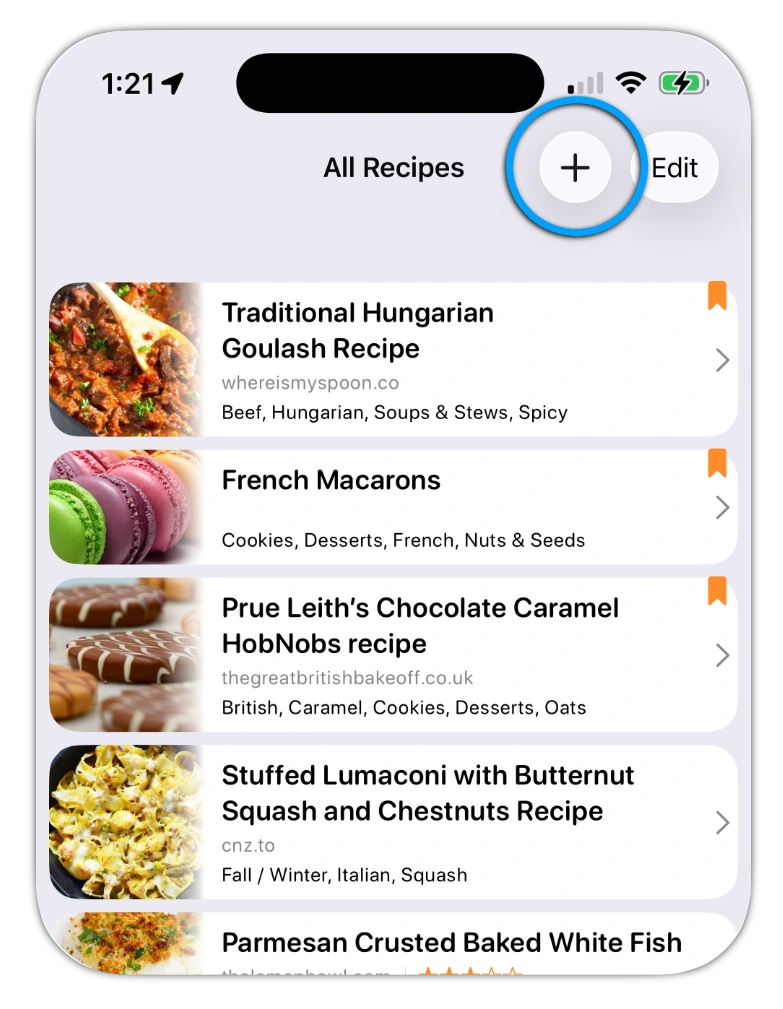
- In Cookery, tap Add Recipe, then choose Import from Photo.
- Select up to two photos. Arrange them in the same order in which the recipe should be read.
- Tap Convert. Cookery will identify and organize the recipe's content.
- Review every field, correct anything that needs attention, and save the recipe.
Requires iOS 26 and a device that supports Apple Intelligence. Cookery includes five free imports of any type every month.
Tips for a difficult photo
- Use bright, even lighting with as few shadows as possible.
- Flatten cookbook pages to reduce distortion near the binding.
- Keep text large and sharp; moving closer is usually better than digital zoom.
- Confirm that numerical measurements and uncommon fraction characters match the original.
- Try Cookery's Document Filter when contrast or readability is poor.
iPhone and iPad
Import a recipe from text
Cookery can turn recipes from Notes and other text-based apps into structured, editable recipes.
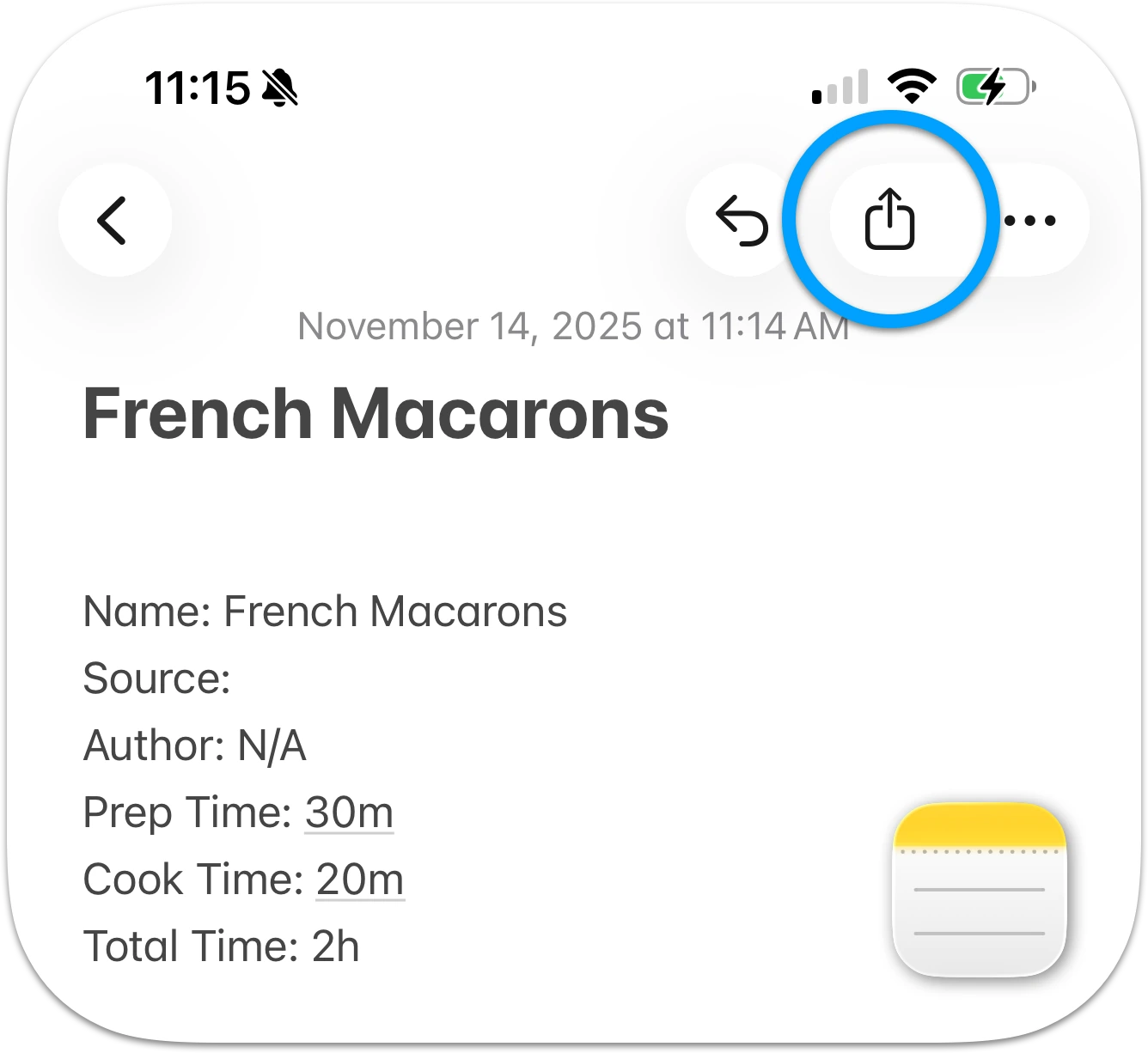
- Open the recipe in Notes, Files, or another app that can share text or documents.
- Tap the Share button and choose Cookery.
- Open Cookery on the same device to finish the import.
- Review the title, ingredients, instructions, and other details before saving.
Intelligent text import requires a device that supports Apple Intelligence.
iPhone and iPad
Import a recipe from a browser
Share a recipe page to Cookery and the app will create a clean, organized recipe without the surrounding webpage.
- Open the recipe page in Safari or another browser.
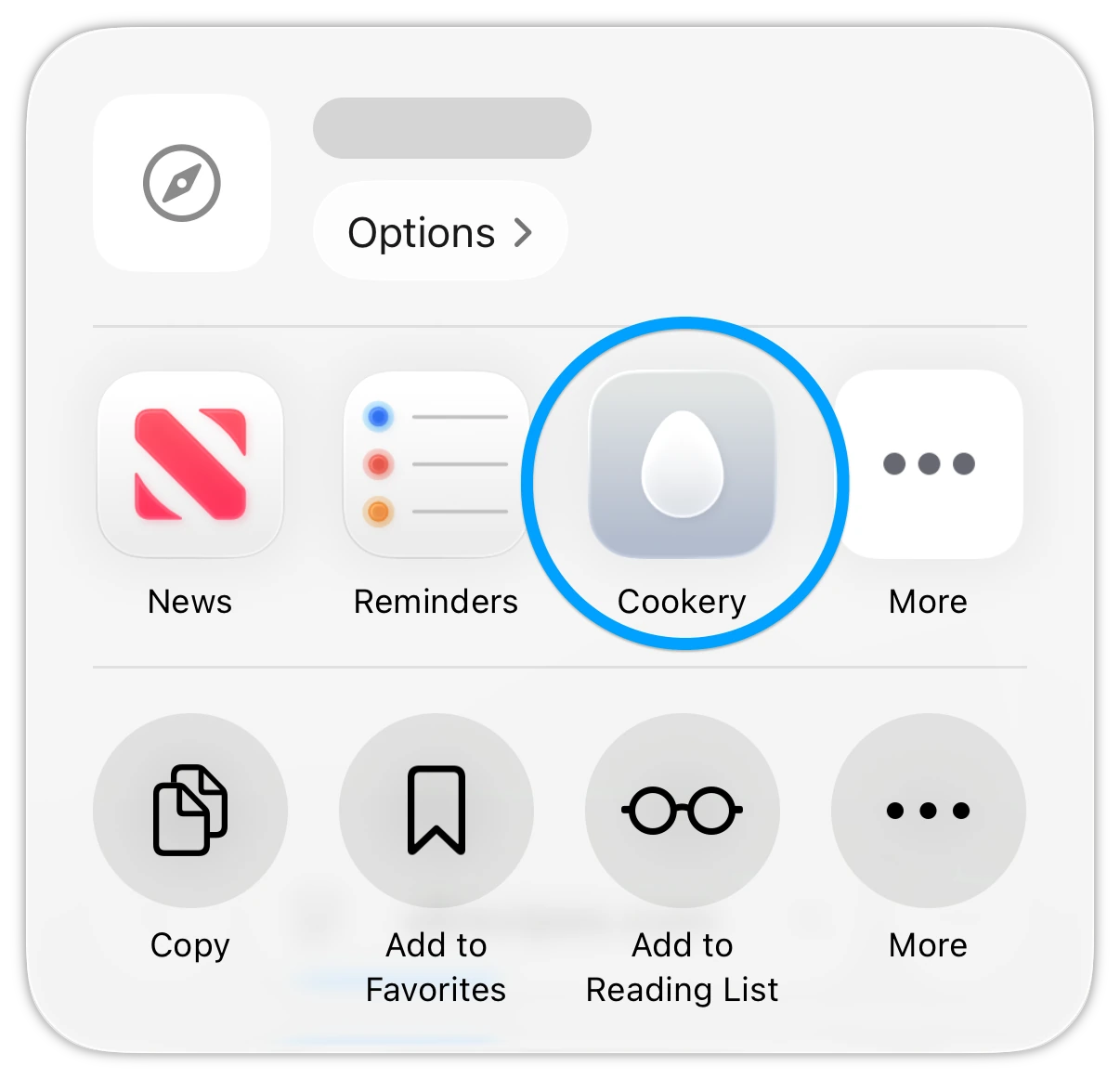
- Tap the Share button and choose Cookery.
- If Cookery is not visible, choose More, then enable or favorite Cookery in the app list.
- Open Cookery on the same device to finish the import.
Mac
Import a recipe from a browser
Cookery for Mac includes both a Safari extension and a system Share extension.
Safari extension
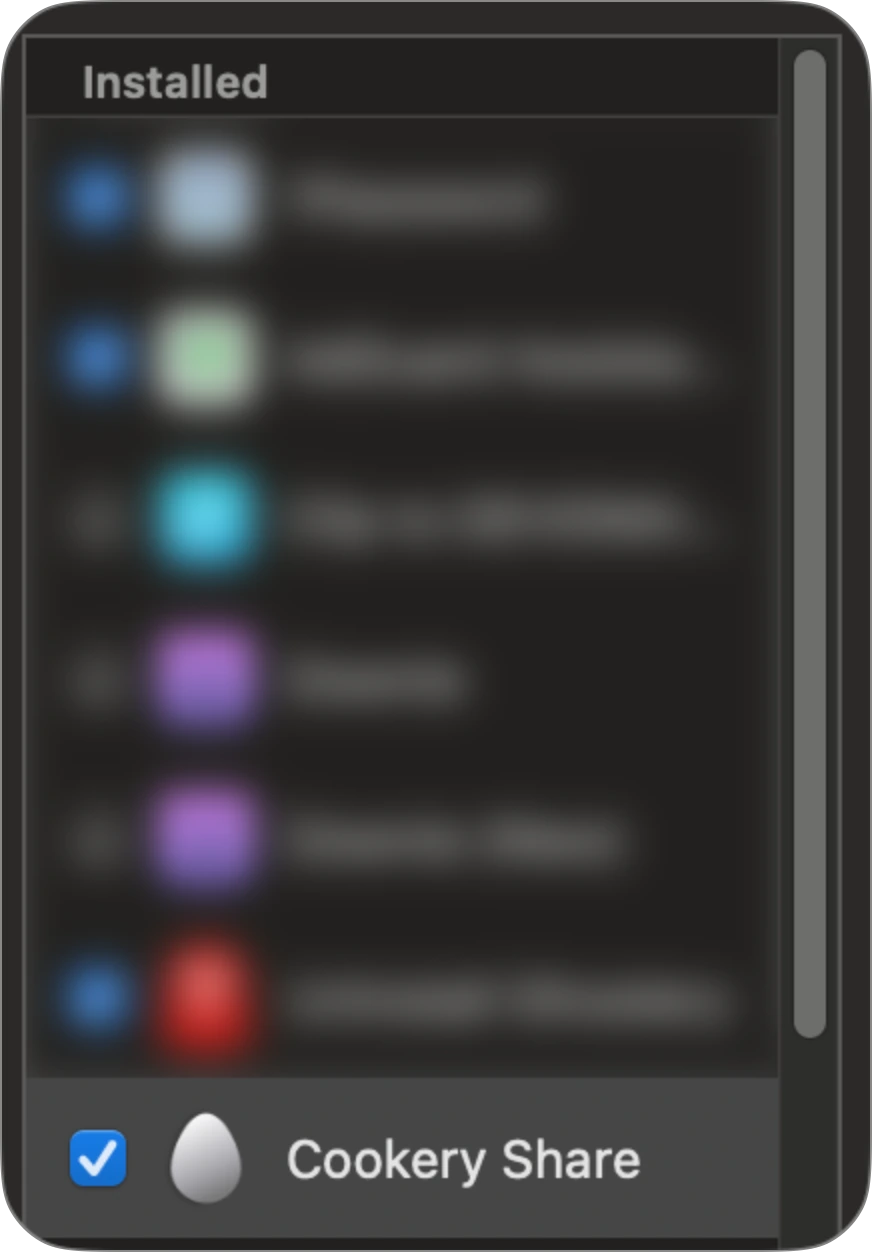
- In Safari, choose Safari > Settings > Extensions.
- Enable the Cookery extension and approve the sites on which you want it available.
- If needed, customize Safari's toolbar and add the Cookery button.
- Open a recipe page and click the Cookery toolbar button.
- Open Cookery on the same Mac to finish the import.
The Safari extension reads the title and URL only when you explicitly share the frontmost page. It may use iCloud to synchronize Cookery settings; it does not send your browsing activity to Pinwheel Development.
System Share extension
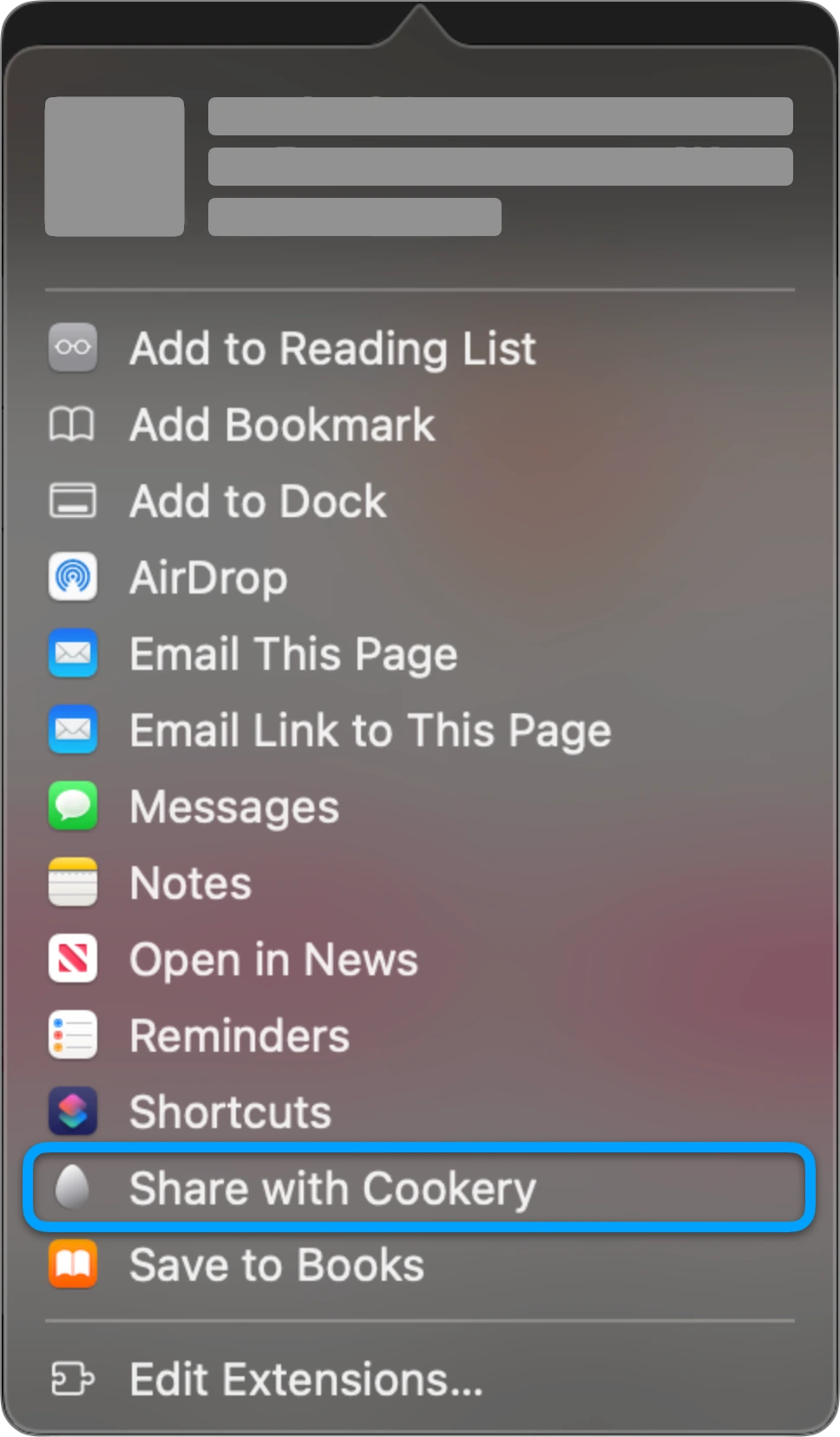
- Open the browser's Share menu and choose Share with Cookery.
- If it is missing, choose Edit Extensions and enable Cookery.
- Open Cookery on the same Mac to finish the import.
Mac
Import photos and files
Import photographed recipes, PDFs, images, text files, and Cookery recipe files directly from the Mac app.
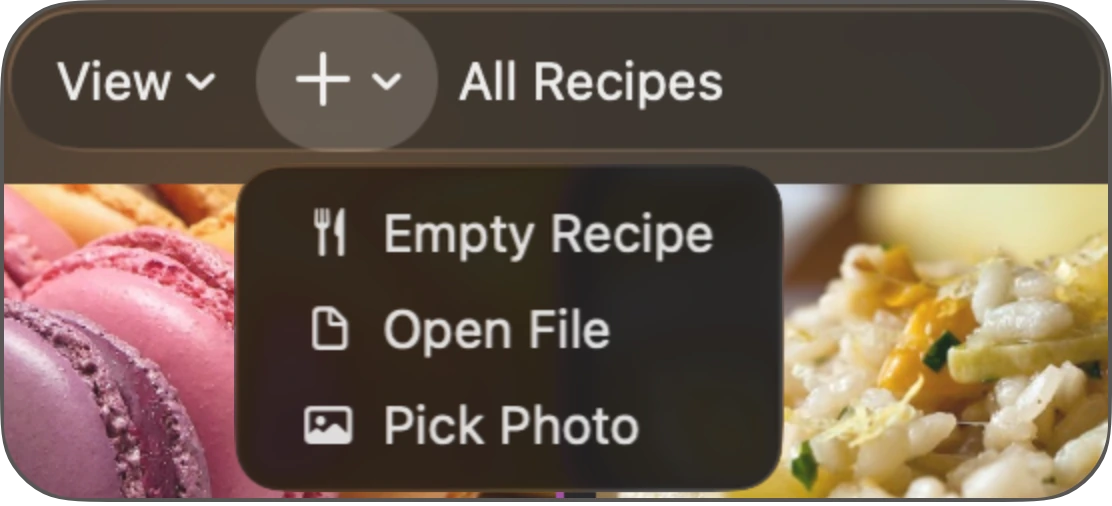
- Choose File > Import in Cookery.
- Select Import from Photo for an image in Photos, or Import from File for a PDF, image, text file, or Cookery recipe file.
- For an intelligent import, arrange selected pages in reading order and start the conversion.
- Review the organized recipe before saving.
Five imports of any type are available free every month; Cookery+ removes the monthly limit. Intelligent photo and document imports require a Mac that supports Apple Intelligence.
iPhone, iPad, and Mac
Scale a recipe or convert metric and US measurements
Adjust a recipe for more or fewer servings, or convert the whole recipe between metric and imperial / US measurements. Cookery lets you review the proposed changes before applying them.
- Open the recipe you want to change.
- Open its conversion controls and choose Metric, Imperial / US, or Scale.
- For scaling, enter a factor such as 2 to double the recipe.
- Choose Preview and compare the original and proposed amounts. Uncertain quantities may be left unchanged, so review them before cooking.
- Apply the changes when you are satisfied. You can restore the original recipe anytime.
See the iPhone and iPad conversion controls or the Mac conversion controls.